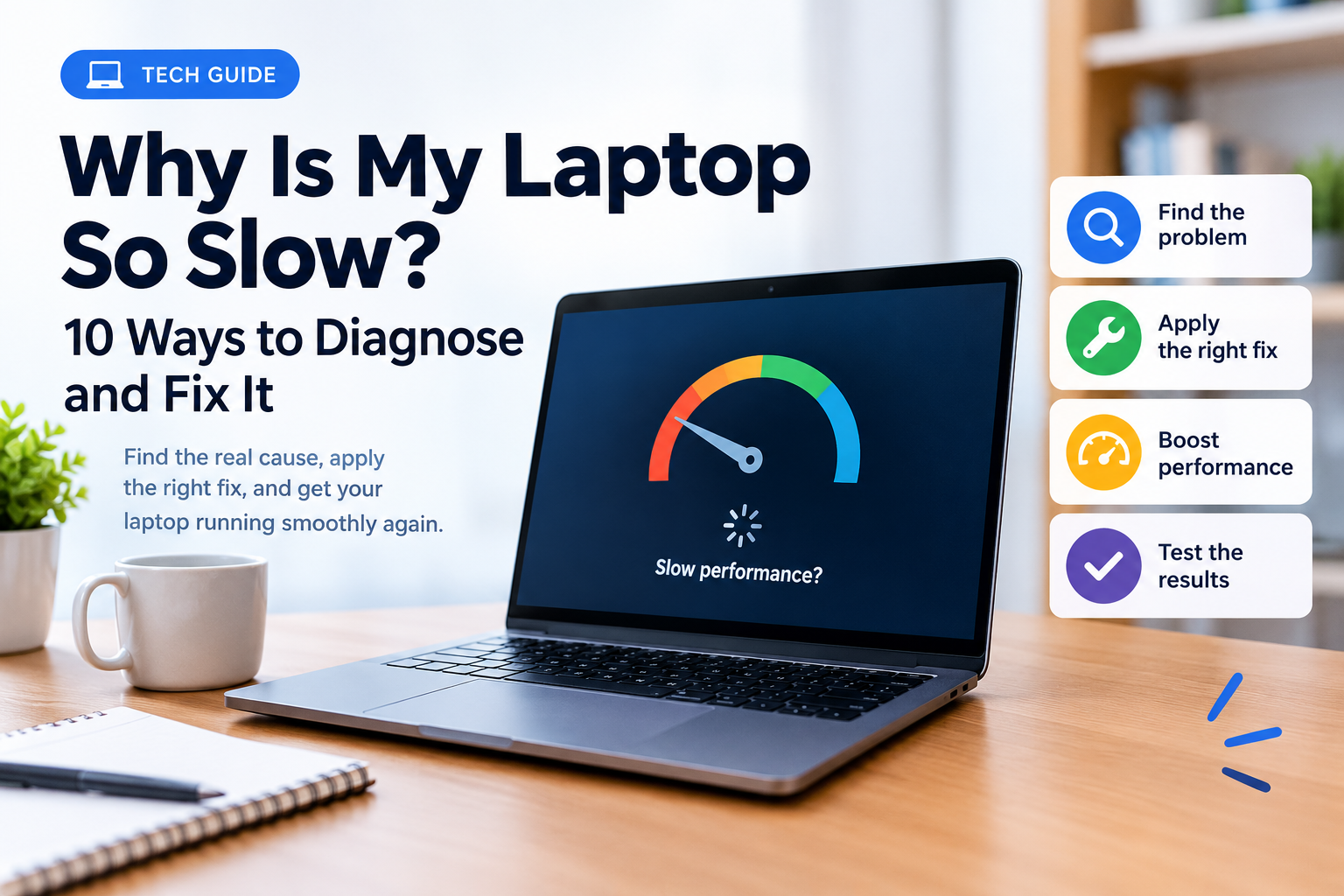
Why Is My Laptop So Slow? 10 Ways To Diagnose And Fix It
Admin·14d ago·14 min read·✎ Updated Oct 19, 2026
Is your laptop taking forever to start, freezing when you open applications, or struggling with tasks that used to run smoothly?
Before spending money on a new computer or installing new software, take a moment to identify what's actually causing the slowdown.
A slow laptop doesn't always mean you need more RAM, a faster processor, or a new device. The problem might be unnecessary start up applications, limited storage space, a demanding program, overheating, or an underlying hardware issue.
The trick is knowing which problem you're dealing with before trying any random fixes.
In this guide, you'll learn how to diagnose a slow Windows laptop, apply the appropriate fixes, and check whether they actually improve performance—all without paying for unnecessary software.
Before changing settings, pay attention to when your laptop becomes slow. Different symptoms can point toward different causes.
What you notice
possible causes to investigate
The laptop takes a long time to start.
Too many startup apps, updates, or slow storage
The laptop freezes when opening apps.
High memory usage, storage delays, or application problems
The browser becomes slow with many tabs open
memory pressure or demanding extensions
The laptop becomes slower after several minutes
Heat, background processes, or sustained workload
Everything feels slow, even simple tasks
Resource bottlenecks, software problems, or aging hardware
The laptop is slow only when gaming
Graphics limitations, heat, or demanding game settings
The laptop suddenly becomes slow
A new application, update, background task, or possible malware
These are possible explanations, not definitive diagnoses; one symptom can have several problems.
Start with three questions
Q1: When did the problem begin?
Did the problem appear suddenly, after installing a program, following an update, or gradually after several months?
Q2: When does it happen?
Does it occur immediately after startup, while browsing, when running several apps, or after the laptop has been running for a while?
Q3: Does everything feel slow, or only one application?
If only one application is affected, investigate that app first. If the entire system becomes unresponsive, check the overall resource usage.
These observations will help you avoid wasting time on fixes unrelated to your problem.
2. Check What's Using Your Laptop's Resources
One of the most useful first steps on Windows is checking Task Manager. It shows what applications and processes are consuming system resources.
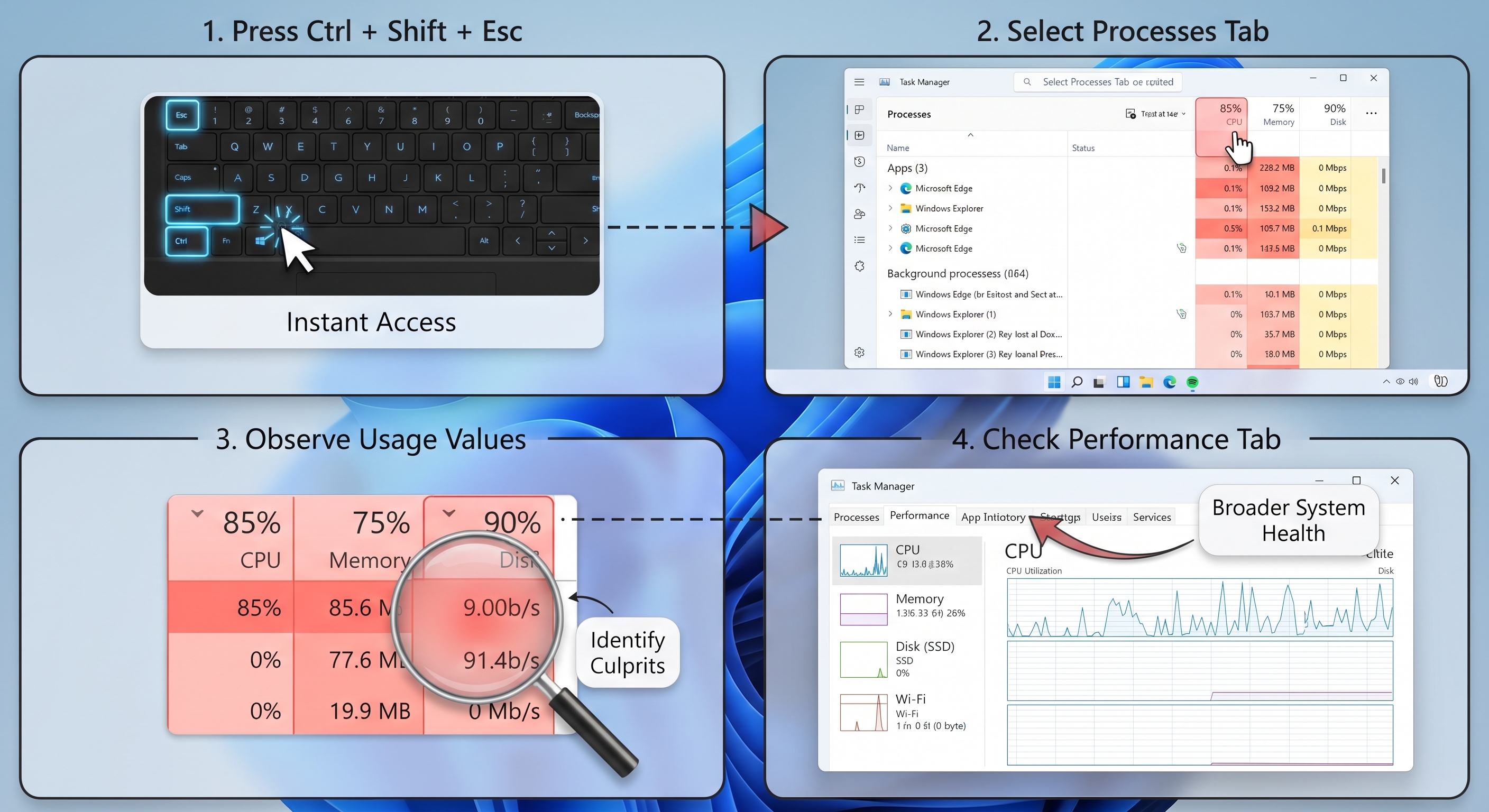
How to open Task Manager
Press Ctrl + Shift + Esc.
Select the processes tab.
Look at the CPU, memory, and disk columns.
Observe the values while your laptop is experiencing the slowdown.
If necessary, open the Performance tab for a broader view.
Opening Task Manager
Don't worry if numbers change constantly. That's normal. What matters is whether a resource remains heavily occupied while your laptop struggles to perform ordinary tasks.
What should you look for?
CPU Usage
The CPU performs calculations and executes instructions. If one application consistently consumes CPU resources, it may be contributing to the slowdown.
Memory Usage
RAM holds the data your active application needs. When available memory becomes insufficient, Windows may rely more heavily on storage, which can make switching between applications feel sluggish.
Disk Usage
Check whether disk activity remains high while applications freeze or take a long time to open; this can indicate heavy file activity, updates, background processes, or storage-related problems.
Important: A high percentage alone doesn't prove that something is wrong. Windows and applications legitimately use resources, and a brief spike during startup or an update may be normal.
What should you do if you find a demanding application?
If you find an application you aren't using, save your work and close it normally.
If an unfamiliar process is consuming resources, search its name or investigate its publisher before taking action. Don't terminate random system processes simply because they appear near the top of the list.
Microsoft recommends using Task Manager to identify resource-intensive processes as part of its Windows performance troubleshooting guidance.
Restarting is a simple troubleshooting step, especially if your laptop has been running for a long time or an application has stopped responding correctly.
A restart closes active sessions and restarts Windows services and processes. It can resolve temporary software problems, although it won't fix every underlying cause.
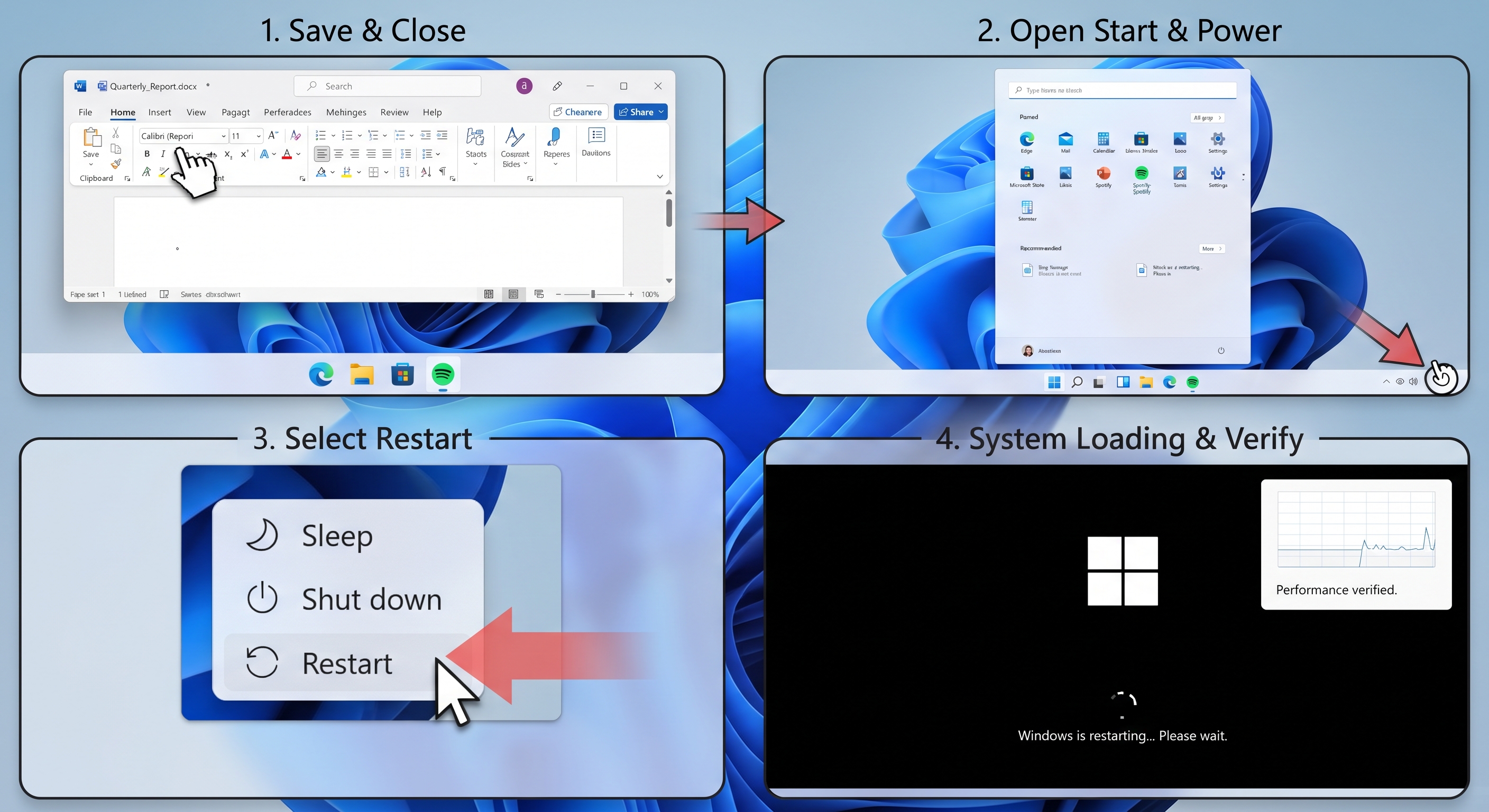
How to restart (Windows)
Save your open document.
Close your applications.
Open the start menu.
Select the power icon.
Choose restart.
Wait for Windows to load completely.
Open the applications you normally use and see whether the performance improves.
Restart Windows
Avoid opening every application immediately. Start with your usual workload so you can identify whether a particular program triggers the slowdown.
When this helps: Temporary glitches, stuck processes, and some problems associated with background activity.
When it doesn't: Insufficient RAM, a failing drive, persistent overheating, or other underlying hardware issues.
4. Disable Unnecessary Startup Applications
Some applications automatically launch when you sign in to Windows. Too many unnecessary startup applications can increase boot time and consume resources in the background.
You don't need to disable everything. Focus on applications you recognize and don't need immediately after startup.
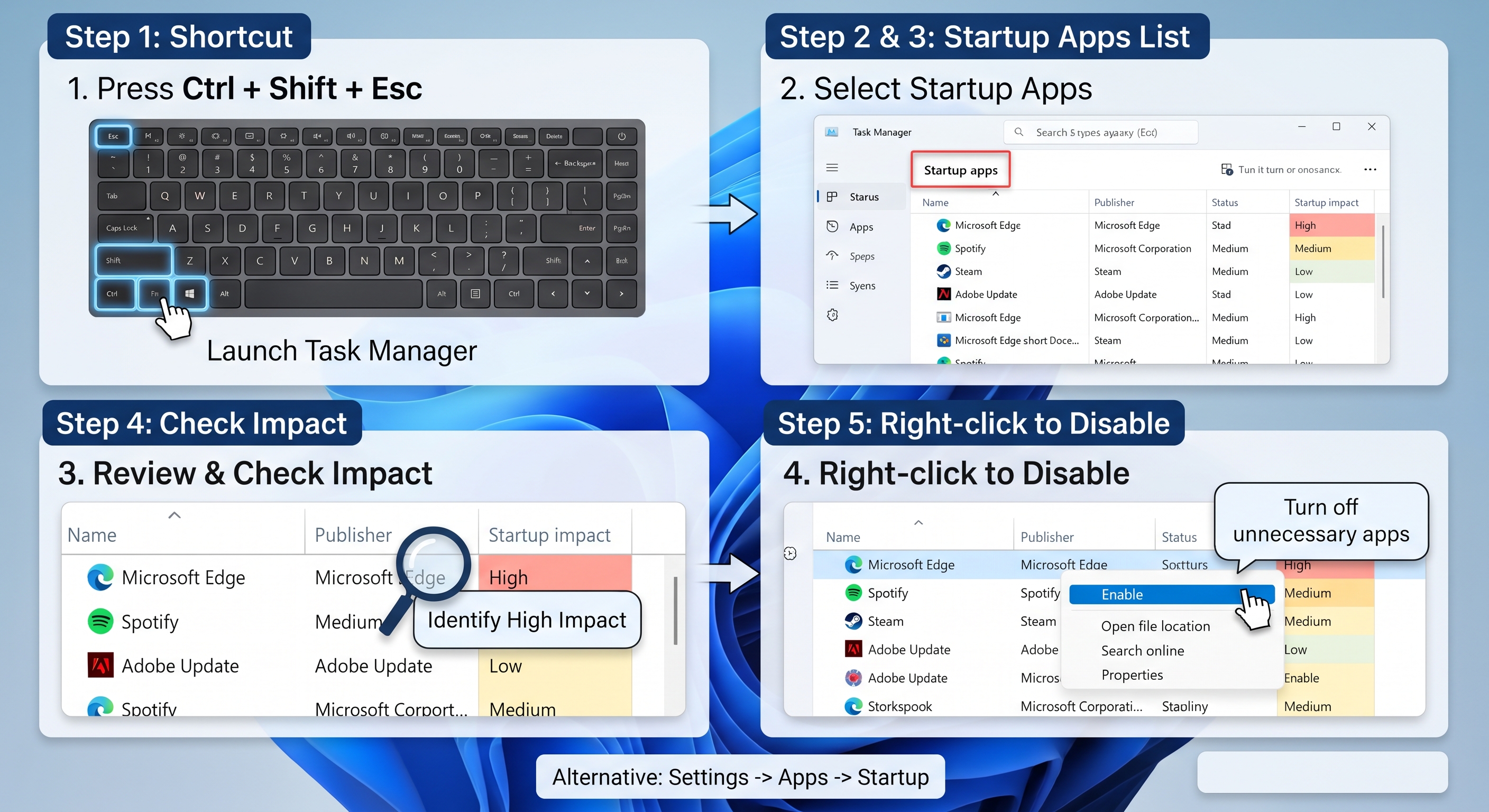
How to manage startup applications
Press Ctrl + Shift + Esc to open Task Manager.
Select startup apps.
Review the listed apps.
Check their startup impact, when available.
Right-click an unnecessary application and select disable.
You can also use Settings → Apps → Startup.
Managing Startup Apps
Examples of apps you might not need at startup include certain game launchers, optional utilities, and applications you rarely use.
However, be careful with security software, hardware utilities, and applications required for specific devices or workflows. If you're unsure what an app does, research it before disabling it.
How to check whether this worked
Restart your laptop and observe how long it takes to become usable. Then check whether background resource usage has decreased.
Disabling startup apps is especially relevant when the laptop is slow immediately after singing in but becomes responsive later.
A nearly full system drive can contribute to performance problems and make Windows updates more difficult to install.
However, deleting files is not a universal speed boost. If your drive has plenty of free space and your laptop is slow because of limited RAM or high CPU usage, storage cleanup may make a little difference.
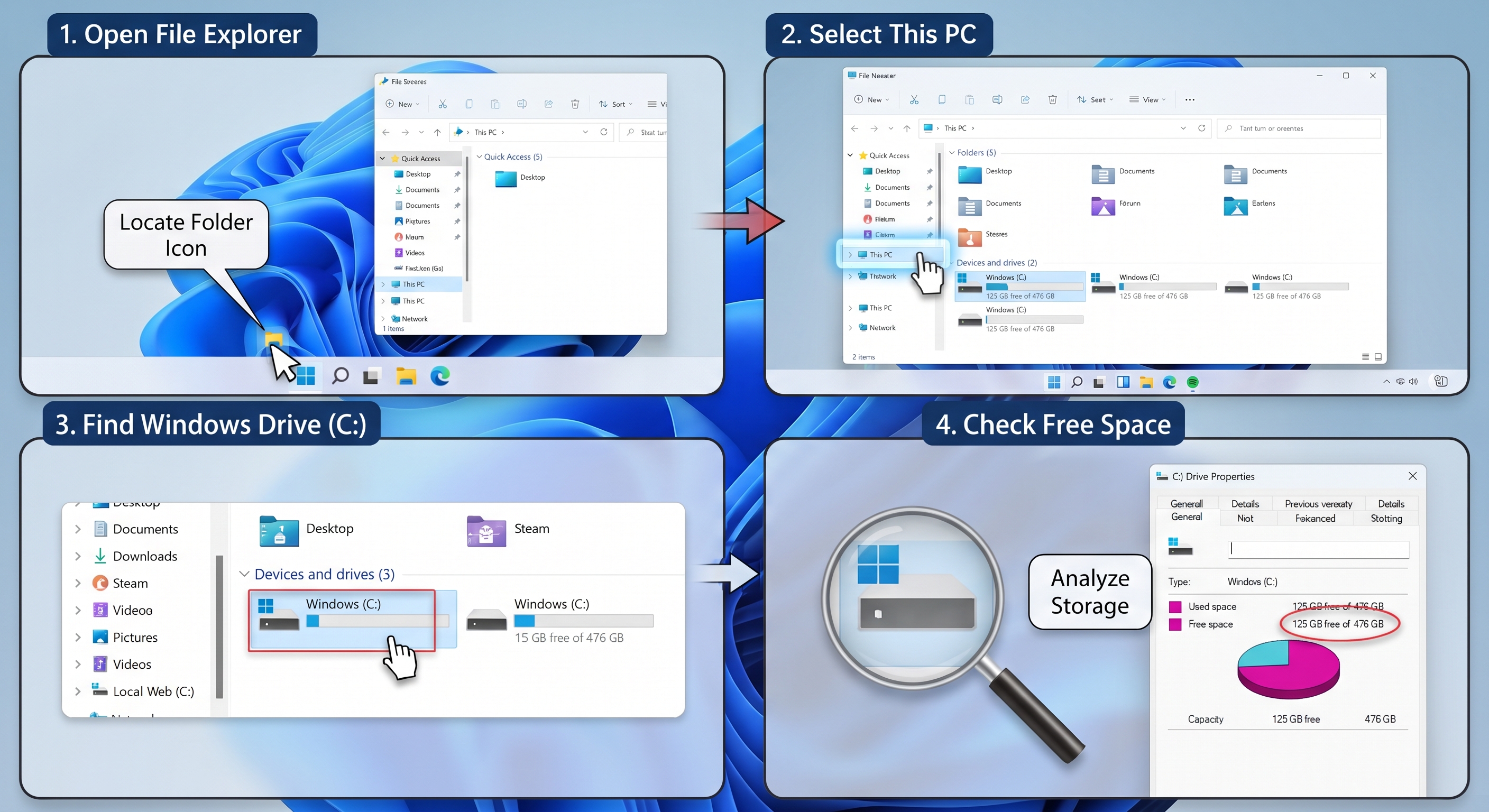
Step 1: Check available storage
Open File Explorer.
Select this PC.
Find your Windows drive, usually C:.
Check how much free space remains.
Freeing Space Steps
If the drive is nearly full, freeing space is a sensible next step.
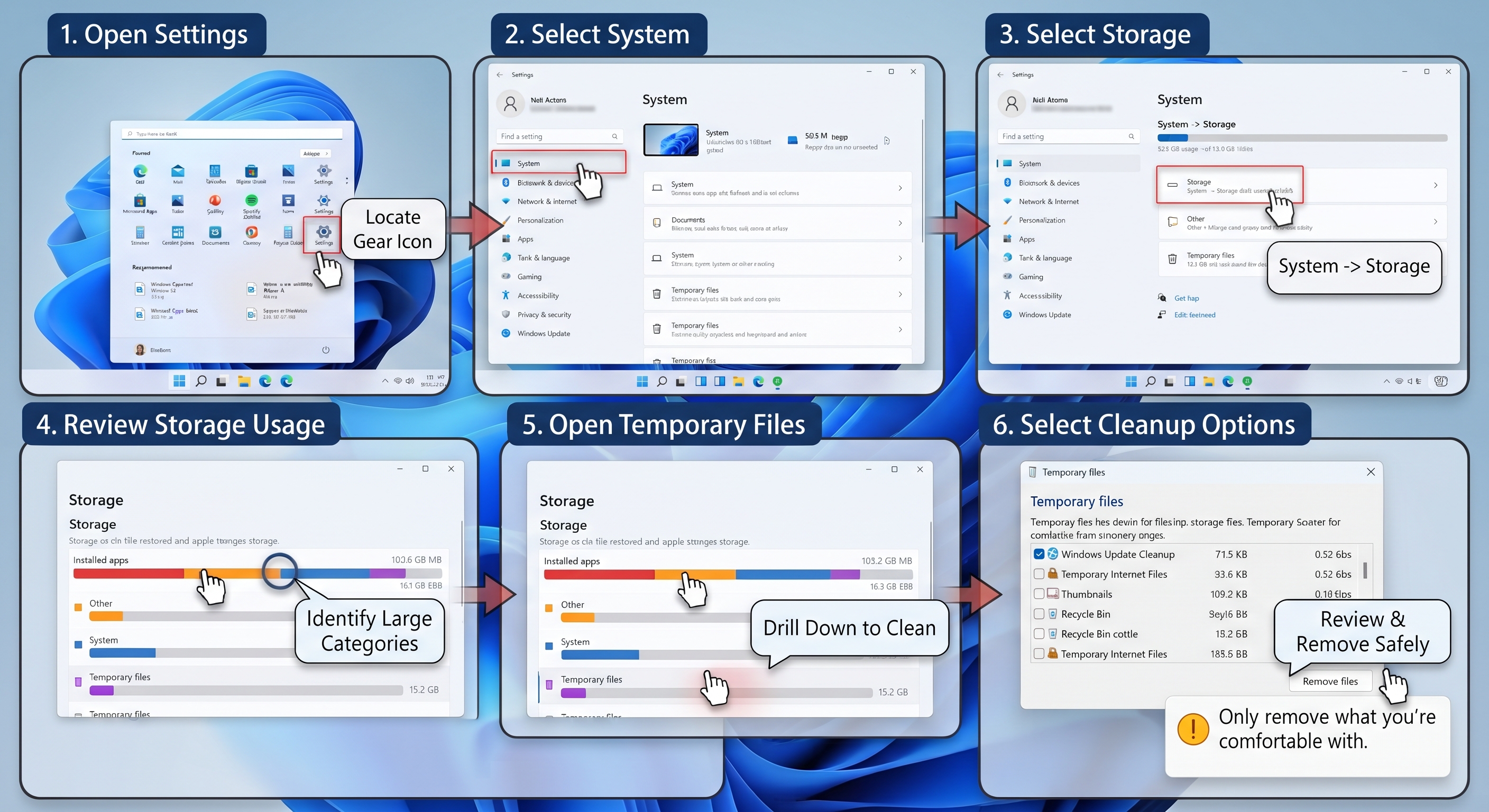
Step 2: Use Windows storage settings
On Windows 11:
Open settings.
Select System.
Select Storage.
Review the categories consuming space.
Open temporary files and review the available cleanup options.
Remove only files you're comfortable deleting.
Windows Storage settings
Storage Sense can also help manage temporary files and other eligible items.
Be careful when selecting cleanup options. Review items such as downloads before deleting them, and make sure you don't remove files you need.
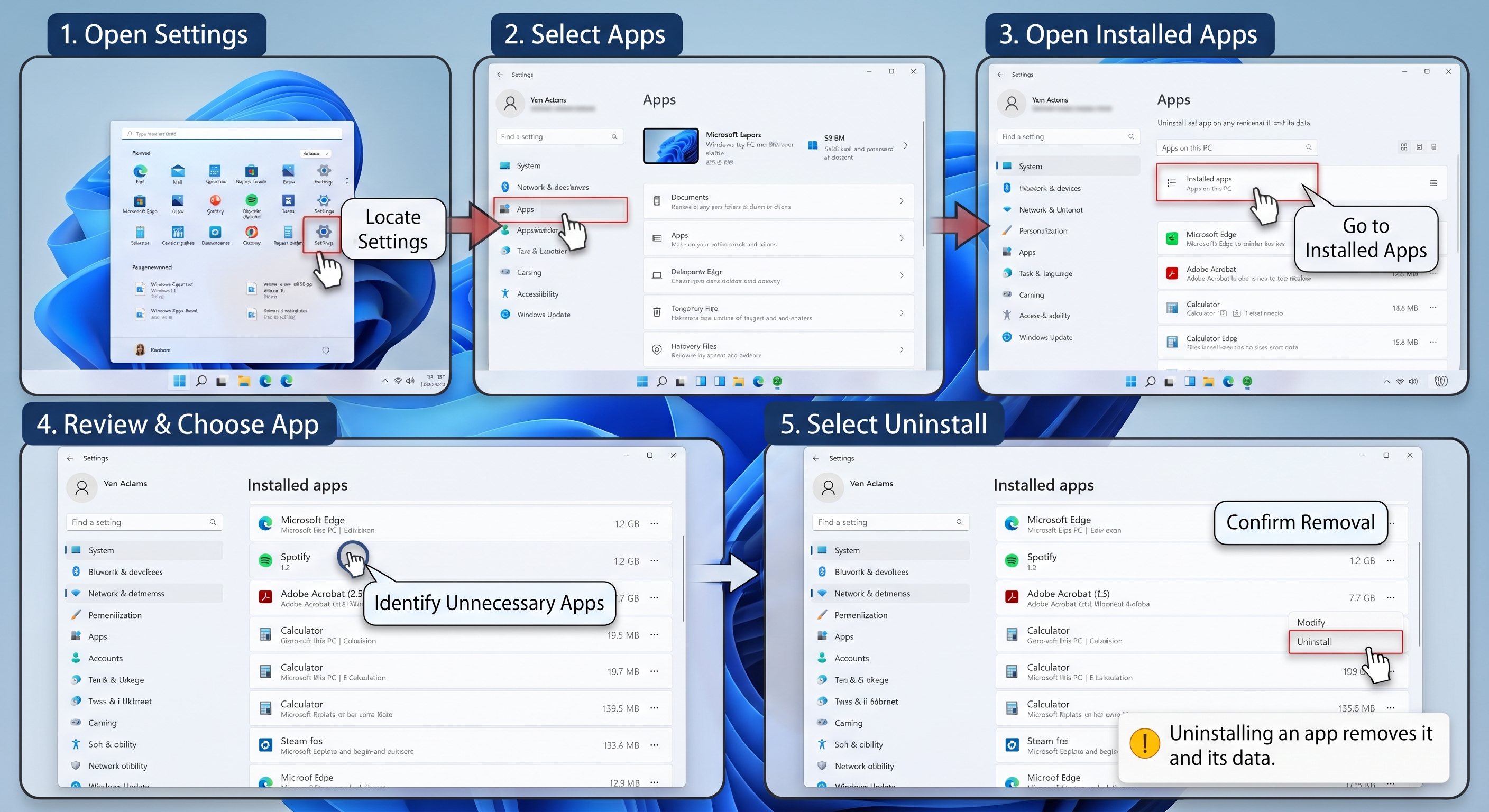
Step 3: Remove applications you no longer need
Open Settings → Apps → Installed apps
Remove Apps
Review the list and uninstall programs you recognize and no longer need. Avoid removing unfamiliar drivers or system components simply to save space.
What if the laptop still feels slow?
If you have freed up sufficient space but performance remains poor, return to Task Manager and investigate CPU, memory, and disk activity.
Malware can consume system resources, interfere with applications, and cause unusual computer behavior. A slowdown alone doesn't prove that your laptop is infected, but a security check is worthwhile if the problem appeared unexpectedly or is accompanied by suspicious activity.
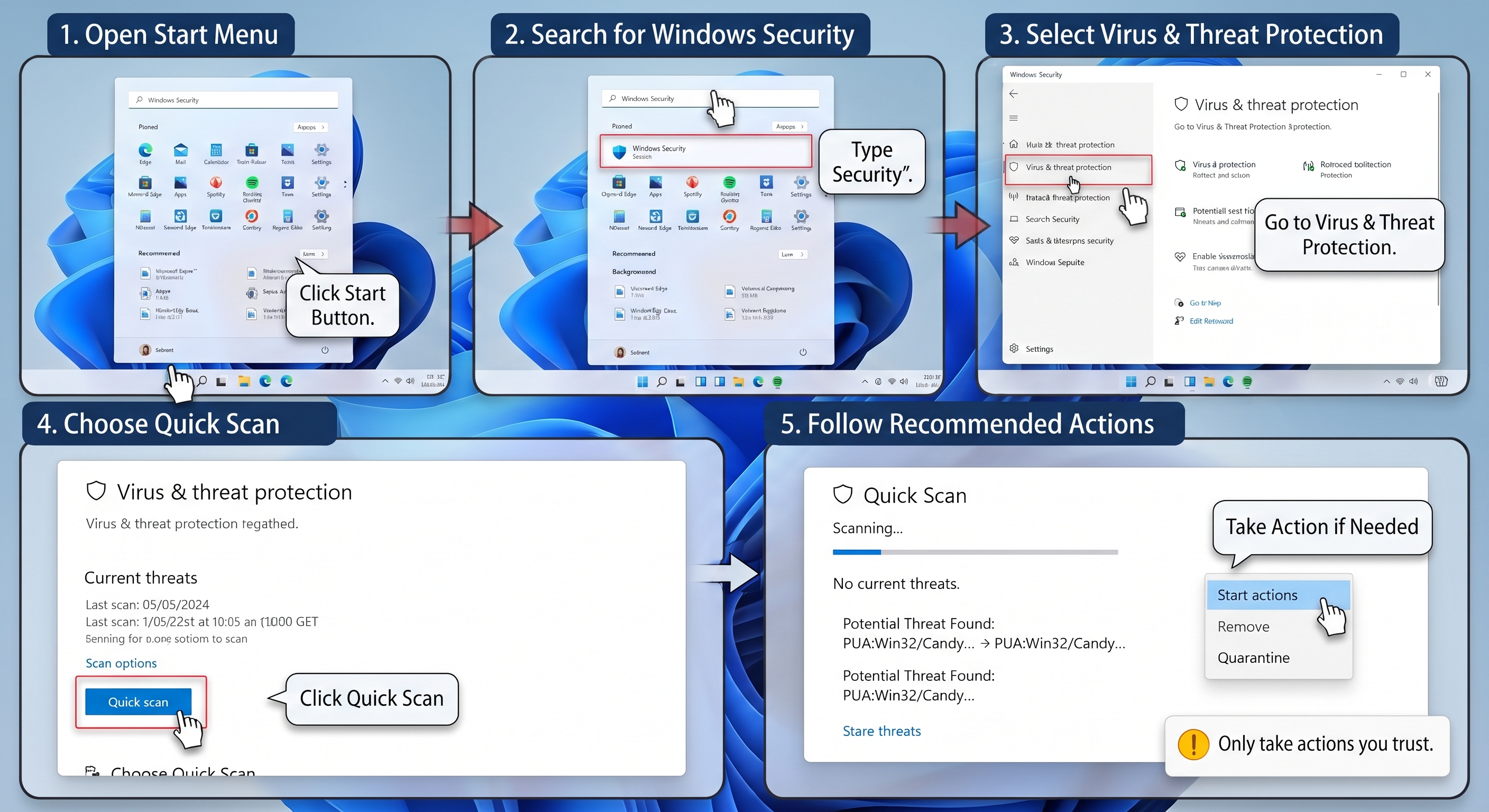
Run a Windows security scan
Open the start menu.
Search for Windows Security.
Select Virus & Threat protection.
Choose Quick Scan.
Follow any recommended actions if threats are detected.
Windows Security Scan
If the problem persists or you have stronger reasons to suspect an infection, consider a thorough scan using the available Windows Security options.
Keep your security software updated and avoid running multiple real-time antivirus products simultaneously unless they are specifically designed to work together.
Avoid questionable optimization tools
Be cautious with apps promising dramatic speed improvements, one-click registry repairs, or guaranteed performance boosts.
Some tools provide useful functions, but others offer little benefit or encourage unnecessary changes. Start with Windows' built-in diagnostic and maintenance tools before installing additional software.
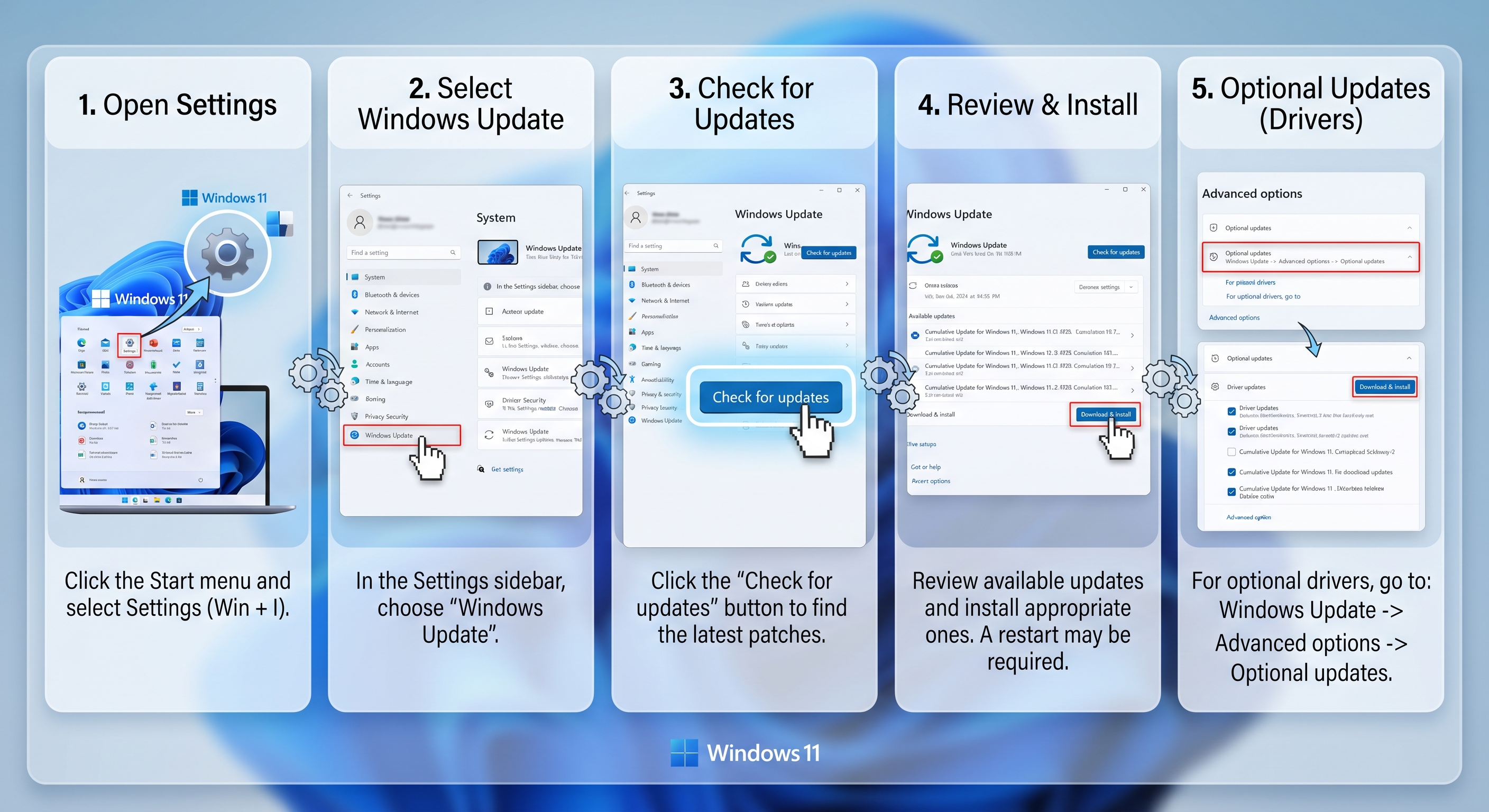
Outdated software can contain bugs or compatibility problems. Updates sometimes include fixes that improve stability and performance.
Check for Windows updates
Open Settings.
Select Windows Update.
Check for available updates.
Review the available updates and install appropriate ones.
Restart if prompted.
For optionall driver updates, review Stteings → windows update → Advanced Options → Optional updates, where available.
Check Windows Updates
You can also check your laptop manufacturer's officail support website for relevant drivers.
Avoid downloading drivers from unfamiliar websitesor installing every optional update without considering its purpose. If the slowdown began immediatelt after a specific update, investigate that update rather than assuming that installing more updates will necessarily fix the problem.
A note about Windows 10: Microsoft ended standard support for Windows 10 on October 14, 2025. Devices still running it may need an eligible extended security option or move to a supported operating system to continue recieving appropriate security updates.
Does your laptop become noticeablyhot, with fans running loudly, before performance drops?
Heat can be a clue worth investigating. Many laptops reduce processor performance when tempretures become too high, helping protect their components.
Check for these warning signs
The laptop becomes unusually hot during light tasks.
Fans run loudly for extended periods.
performance decreases after sustained use.
The laptop shuts down unexpectedly under load.
None of these signs proves overheating on its own. Fan noise, for example, can be normall during demanding tasks.
What you can do
1. Place the laptop on a hard, flat surface.
2. Keep its ventilation openings unobstracted.
3. Avoid using it on blankets, pillows, or other surfaces that block airflow.
4. Close unnecessary demanding applications.
5. Check whether vents are visibly blocked by dust.
6. If overheating persists, consider professional cleaning or inspection.
Don't open the laptop unless you're comfortable working with its hardware and understand the manufacturer's service guidance. Avoid using liquids or inserting objects into ventialation openings.
If the laptop is extremely hot, has a swollen battery, or shows signs of electrical damage, stop using it and seek qualified assistance.
9. Reduce Unnecessary Background Activity
Some applications continue working when you're not actively using them. Depending on the application, they may synchronize files, download updates, index content or perform other tasks.
Background activity isn't inherently bad. The goal is to identify processes that are unnecessarily consuming resources or interfering with tasks you need to perform.
Try these steps
Close apps you aren't using.
Reduce unnecessary browser tabs.
Review browser extensions and remove ones you don't recognize or need.
pause optional downloads or synchronization tasks temporarily when appropriate.
Review applications with persistent background activity.
Restart and check whether the problem returns.
If the slowdown occurs mainly while browsing, test the browser with fewer tabs and extensions. If that makes a clear difference, investigate the browser rather changing unrelated Windows settings.
Be aware that cloud synchronization and security scanning may temporarily increase resource usage. Let legitimate background tasks finish when practical, rather than repeatedly interupting them.
10. Determine Whether The Hardware Is The Problem
If the previous steps haven't helped, your laptop may be limited by its hardware-or it may have a hardware fault.
Before purchasing an upgrade, try to identify actual limitation.
Is your laptop running out of RAM?
If memory usage regularly approaches capacity during your normal worload and apps become sluggish when you switch between them, insufficient RAM may be a contributing factor.
Closing applications can help temporarily. A RAM upgrade may help if your laptop supports one and your workload gennuinely needs more memory.
Some laptops have soldered memory, so upgrading may be imposible or uneconomical.
Is your laptop using a traditional hard drive?
A laptop with a mechanical hard disk can feel much slower during startup and application loading than a compatiable system with a solid-sate-drive (SSD).
Ifyour laptop stills uses and HDD, an SSD upgrading may offer a substantial improvement in responsiveness, provided the drive is a major bottleneck and the upgrade is compatiable.
Back up your data before any storage replacement. If the drive shows signs of failure, prioritize data recovery and backup rather than repeatedely running demanding tests.
Is the processor too limited for your workload
Older or entry-level processors may struggle with demanding software, modern games, heavy multitasking, or complex editing tasks.
If CPU usage remains high during your normal workload even after unnecessary processes are closed, your laptop may simply be working at the limits of its capabilities.
Is the laptop experiencing a hardware fault?
Persistent disk errors, unexpected shutdown, freezing, or unusual noises from a mechanical drive may indicate a problem that routine cleanup cannot solve.
If you suspect drive failure, back up important files as soon as possible and seek appropriate diagnostic help.
The key is the distinguish between a laptop that needs optimazation, one that needs an upgrade, and one that needs repair.
11. How To Know Whether Your Fix Worked
Trying a fix without checking the resault makes it difficult to know whether you've solved the problem.
Use a simple before-and-after test.
Step 1: Record the original symtom
For exampe:
It takes a long time for the desktop to become responsive.
The browser freezes when several tabs are open.
Applications take unusually long to launch.
Step 2: Change the one thing at a time
Disable unnecessary startup apps, for example, and restart the laptop.
Avoid changing ten settings simultaneously. If if performance improves, you won't know which change helped
Step 3: Repeat the same task
Perform the same action that previously caused trouble.
If your browser was freezing with several tabs open, repeat that worload. If startup was the problem, compare startup behavior after the restart.
Step 4: Record the resault
Use this simple worsheet:
Test
Before
After
Startup responsiveness
-----------------
-----------------
Application loading
-----------------
-----------------
CPU usage during the test
-----------------
-----------------
Memory usage during the test
-----------------
-----------------
Free storage space
-----------------
-----------------
Overall responsiveness
-----------------
-----------------
You don't need specialized benchmarking software for every situation. Observing the same real-world task under similar conditions can be useful.
If the resault doesn't improve, restore any changed setting when appropriate and investigate another likely cause.
12. When Free Fixes Aren't Enough
Not every slow laptop can be made fast through software adjustments.
If you've identified a hardware limitation, repeatedly cleaning temporary files or installing applications won't resolve it.
Hardware upgrades require disassembly or specialized knowledge.
The system craches or freezes frequently.
You suspect a serious operating system or hardware problem.
Before paying for repair or buying a replacement, ask for a diagnosis and a clear explanation for the proposed solution.
If the laptop need mor RAM or an SSD, compare the upgrade cost with the age, condition, capabilities of the device. If it has several major limitations, replacing it may make more financial sense.
The goal isn't to make every old laptop perform like a new one. It's to find the most sensible solution for your actual needs.
Frequently Asked Questions
Why is my laptop suddenly so slow?
A sudden slowdown can resault from an application consuming excessive resources, an update, a background task, low available storage, malware, or a hardware issue. Check Task Manager while the problem is happening, then investigate recent changes.
Can a full hard drive make my laptop slow?
Low Free space can contribute to perfomance problems and interfere with updates. However, a full drive isn't the only possible cause. Check available storage and resource usage before assuming that deleting files will solve the problem.
Will adding more RAM make my Laptop faster?
It can help when your current workload regularly exceeds available memory. If your slowdown is caused by a failing drive, overheating, or another bottleneck, adding RAM may provide little or no improvement.
Does clearing the cash make a laptop faster?
Sometimes but not universally. Clearing certain cashes may resolve specific problems or free a samll amount of space. It won't automatically improve overall performance, and clearning browser data may remove useful information or sign you out of websites.
Should I use a PC cleaner or registry cleaner?
Start with Windows' built-in tools. Third-party applications aren't automatically harmful, but many advertised optimization benefits are overstated. Avoid tools that promise guaranteed dramatic improvements or encourage unnecessary system changes.
When should I replace my laptop instead of fixing it?
Consider replacementwhen repair and upgrade costs are high relative to device's remaining usefulness, when essential hardware is failing, or when the laptop cannot reasonably handle your workload.
Conclusion: Find The Cause Before Trying More Fixes
A slow laptop doesn't automatically need expensive repair or replacement. It may need fewer startup applications, more available storage, a security scan, or attention to overheating.
The most effective approach is the identify the symptom, investigate the likely cause, apply a relevant fix, and test the resault.
Start with Task Manager and your actual workload. If the evidence points to a hardware limitation, investigate upgardes or repairs instead of continuing to try unrelated software fixes.
Your next step: Identify when your laptop slows and which resource or activity appears to be responsible. That gives you much better starting point that randomly trying every optimization tip you find online.
Editorial note: The instraction above focus primarily on windows 11, with some steps also applicable to Windows 10. Settings and labels may differ be version and device.
A
Admin
Tech journalist
Comments (0)
🔒
Join the conversation
Create a free account to comment.
Is your laptop slow to start, freezing when you open apps, or struggling with everyday tasks?
 Check Windows Updates